Can I use multiple URLs in the URL field of KeePass?
Solution 1
You can create a copy of a password entry:
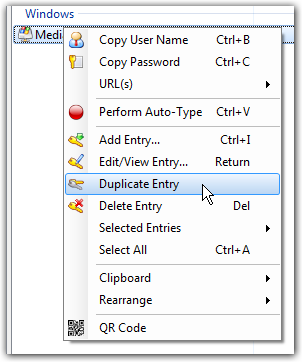
And then only use references for username and password in the new entry:
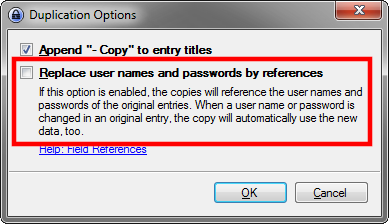
Then, adjust the URL in the new entry.
Solution 2
The answer from Oliver Salzburg is very good.
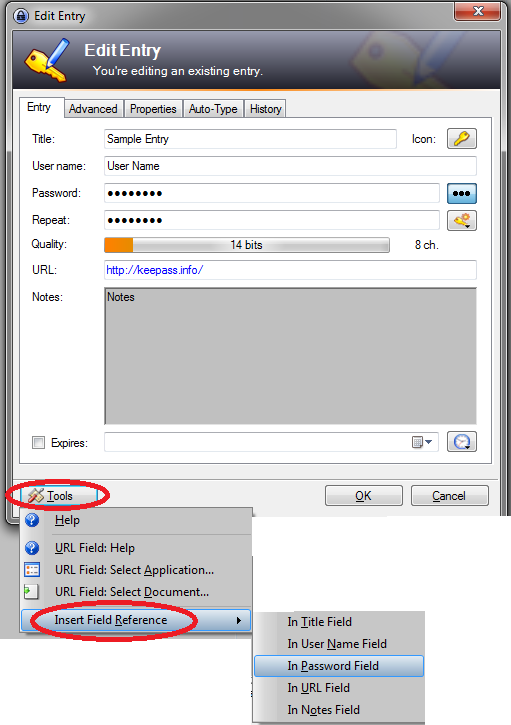
Complementing it, if you already have an entry and want to link another entry, go to the entry, properties, then tools, insert field reference and link to the type you need.
See an example here:
Solution 3
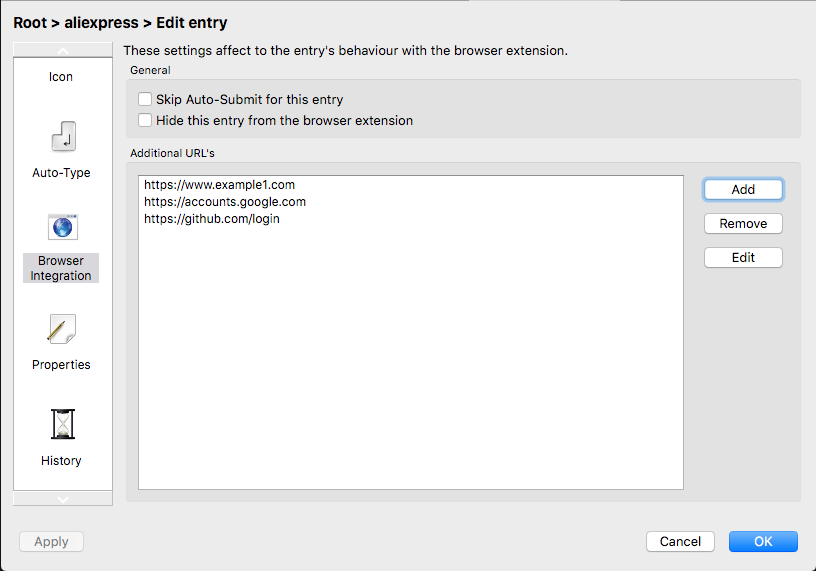
Switch to KeePassXC. As of the 2.5.0 release, this now works as you would expect.
The new Browser Integration entry settings page has a list view with any additional URL's. These URL's are added to the entry attributes with KP2A_URL_, which means those are directly compatible with Keepass2Android.
Solution 4
If you want to use multiple URLs in order to Auto-Type when you are on those URLs, you don't need to create copies with field references; they can be added in the Auto-Type settings.
If you use KeePass as a sort of bookmark manager for login pages, so you open URLs from KeePass and then login, rather than browsing to the login page in your browser and use KeePass's auto-type, then indeed creating multiple entries is what you want. (Your usage of full URL https://accounts.google.com/ServiceLogin?hl=en&continue=https://www.google.com/ rather than just https://accounts.google.com/ seems to suggest this.) Otherwise, this answer, with one entry per account matching multiple URLs might be a cleaner solution.
If you use KeePass with no plugins, then you presumably use a plugin/extension on the browser instead, i.e. a URL in Title Bar extension to add the current URL to the browser's window title, with either of these KeePass settings enabled:
- An entry matches if its URL is contained in the target window title
- An entry matches if the host component of its URL is contained in the target window title
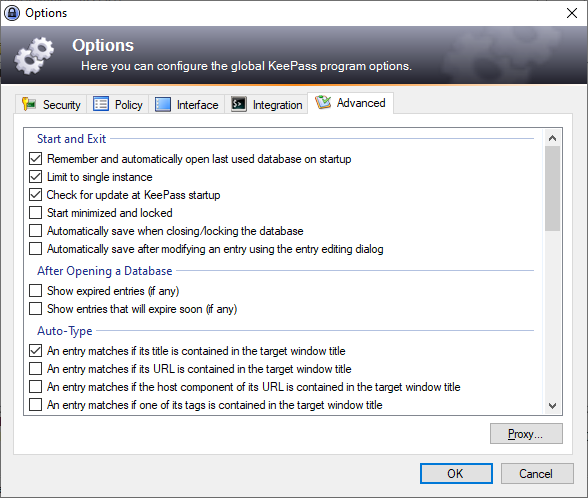
In the case where the desired multiple URLs are exactly as described in the question, with the same domain name, the solution is simple, either use the domain (https://accounts.google.com/) as the URL, or check the second setting above.
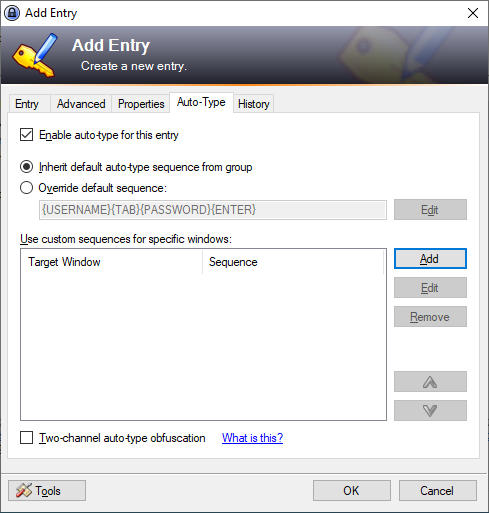
But if you don't want to do either of these, or if the different URLs that you want to match are on different domains, then they can be added in the Auto-Type settings. For example, you have an entry with https://superuser.com/ as the URL. You want to use the same account on https://stackoverflow.com/. Then go to the Entry's Auto-Type settings, click "Add" at "Use custom sequences for specific windows:"
Enter *https://stackoverflow.com/* in "Target window", and leave the second setting at "Use default keystroke sequence of the entry", unless this particular page requires a different auto-type pattern.
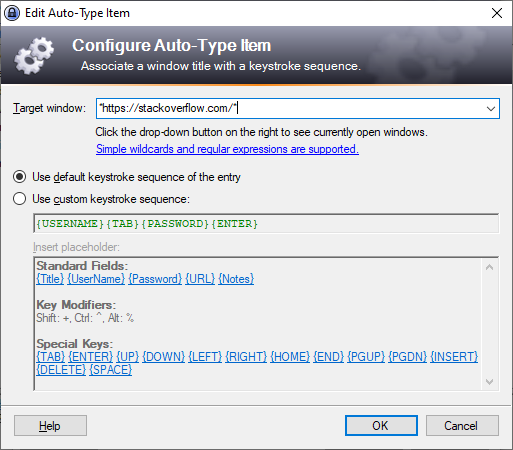
(Normally Title/URL can match if contained anywhere in a window's title, putting asterisks on both sides of the second URL replicates this behavior.)
Regular expressions are supported, so if you want to match all Stack Exchange sites, you can use //https://[a-z]*\.?stackexchange\.com/.*// as a third URL, which matches https://stackexchange.com/anypath as well as https://subdomain.stackexchange.com/anypath. (You could also use *stackexchange.com/* without using regular expressions; but this would also match https://evilsite.com/phishing/stackexchange.com/)
If you don't use a browser extension to add the URL in window title, you use a KeePass plugin to match URLs, like I do, e.g. WebAutoType (Website). Then, the process of adding a second URL is similar, in the Auto-Type settings, but it is added explicitly as a URL:
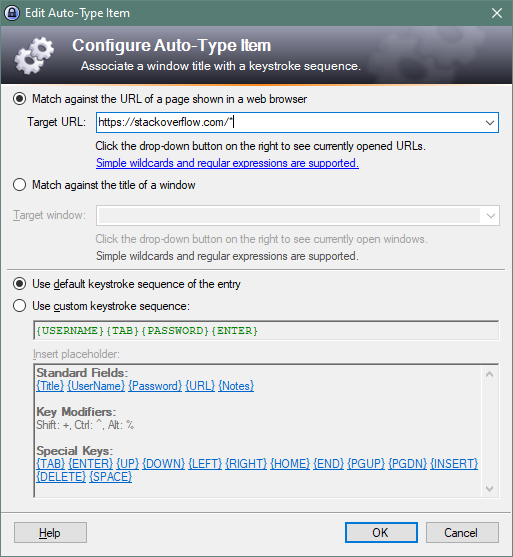
This time, an asterisk is only needed at the end (https://stackoverflow.com/*), as it compares it explicitly to the address in the browser. If you want to match specifically to a single page rather than a domain, no asterisk is needed.
Again, regular expressions are supported, so you can use //https://[a-z]*\.?stackexchange\.com/.*//. But since v6.1 (2019-06-15), WebAutoType has intelligent URL field matching, whereby:
Rather than just starts-with, it will now try and match any URL that has the URL field value as a base, now including sub-domains.
This is specifically for the URL field, not other custom Auto-Type settings you add. So you can just use https://stackexchange.com/ in the entry's URL field, and https://superuser.com/* and https://stackoverflow.com/* as the second and third URLs, thus matching all Stack Exchange sites without needing regular expressions.
Related videos on Youtube
 11 : 21
 03 : 29
 18 : 03
 07 : 59
 14 : 04

Samir
Tell me and I forget. Teach me and I remember. Engage me and I learn.
Updated on September 18, 2022Comments
-
Samir 8 months
I am using KeePass version 2.19. What I would like to do is have more than just one URL address associated with a given user name and password.
The entry for a given website might look something like this...
Title
google
User Name
email
Password
pass
URL
https://accounts.google.com/ServiceLogin?hl=en&continue=https://www.google.com/
https://accounts.google.com/ServiceLogin?hl=sv&continue=https://www.google.com/
https://accounts.google.com/ServiceLogin?hl=de&continue=https://www.google.com/
As you can see the
?hl=enchanges into?hl=svand then to?hl=defor the three different languages in which I wish to view the Google log-in page.But this of course could be something completely different, like different web services from the same provider like YouTube and Gmail by Google. Very much like SE where you have several websites but only use one user name and password.
I imagine something along the lines of having multiple entries for one and the same website, where KeePass would actually prompt you to choose which one you want to use. So you have several user names and passwords that use the same URL. But is it possible to have several URLs using the same user name and password, so that KeePass asks me "to which of the following three URLs do you want to auto-log into with this password"?
-
 Admin over 7 yearsFor this case you could just use
accounts.google.com/ServiceLoginas the URL and it will match all the above cases -
Admin about 5 yearsThis happens much more often for
ssh://andscp:// -
Admin almost 3 yearsSee my answer for a modern solution that doesn't require duplicating references.
-
-
Samir almost 11 yearsPerfect! So when I want to change the password I can only change it in the original entry? I'm thinking what if I have different titles for all the three, how to find the original one. But I guess that's only a matter of getting used to this and having some meaningful titles that are easy to find.
-
 Oliver Salzburg almost 11 years@Sammy: I actually don't use this feature myself. I mostly rely on Auto-Type for everything. You can even define custom attributes in an entry and reference those in the Auto-Type pattern. The possibilities are endless :D
 -
 kapex almost 9 yearsI'm wondering if there is another option, since the menu entry says
URL(s) >implying that it should be possible to have multiple URLs. -
Oliver Salzburg almost 9 years@kapep Very good observation. Maybe it could be worth examining the source or having a closer look at the documentation.
-
Oliver Salzburg almost 9 years@kapep After inspecting the source, it is my understanding that the label says "URL(s)" because the actions in it can apply to all currently selected password entries. I didn't see anything that would indicate multiple URLs being supported in a single password entry.
-
 colan almost 3 yearsSee my modern answer for a way to do this without adding duplicating references.
 -
colan almost 3 yearsSee my modern answer for a way to do this without adding duplicating references.
-
Oliver Salzburg almost 3 years@colan Hah nice. I switched to KeePassXC yesterday for other reasons. Upvoted your answer :)
-
 Kamafeather almost 3 years✅ BEST ANSWER (updated to 2020)
 -
 Toilal over 2 yearsYes. KeePassXC is really better, and Android app is great too !
 -
 Charlie about 2 yearsThis is done in the Browser Integration page of the Entry Edit screen; I'd update the answer but the queue is full =/
 -
 theking2 over 1 yearExcellent, Thanks!