Downloading and installing PyBluez for a 64-bit Windows 10 PC?
Solution 1
I have successfully built pybluez for win10x64 with python3.6
- Download and install windows 10 build tools: https://www.visualstudio.com/pl/thank-you-downloading-visual-studio/?sku=BuildTools&rel=15
- Run 'Developer Command Prompt for VS' as administrator
- Clone pybluez repo https://github.com/karulis/pybluez
- cd to directory with repo
- run
python setup.py install
Happy bluetoothing
Solution 2
This is an "expanded solution" which supplements the other answers posted.
Bluetooth is readily supported on Linux in basically any context. Python 3 built-in socket objects work over bluetooth even. But for Windows, there are hoops to jump through. The standard solution for this is to use PyBluez. If you're really lucky, you might be able to install with just pip install PyBluez-win10. If that fails, however, the way to go is an installation via a pre-compiled "wheel".
A given wheel only works for your specific context, however, i.e. exact Python version. So, for the sake of future proofing, if you are going to need PyBluez, you should know how create a wheel from the source for yourself. It's a long, annoying process if you don't have the all the software required already and are not familiar with some parts of the process e.g. using Anaconda. So, if you are working in a team, I suggest having one person burn their time on this and then share the wheel with everyone (who are hopefully on the same version of Python!).
The following is a paraphrased version of what is posted here: https://github.com/pybluez/pybluez/issues/180 which includes the actual developer's comments and methodology.
-
Download and run the "Visual Studio Build Tools" installer:
For an official list of exact compilers and links to match against target Python versions, refer to: https://wiki.python.org/moin/WindowsCompilers
Here's the 2019 Build Tools link, which works with Py3.7:
https://visualstudio.microsoft.com/downloads/#build-tools-for-visual-studio-2019
-
During the install you MUST select BOTH "Visual C++ build tools" AND "Universal Windows Platform build tools". Leave the default options alone within those (e.g. including the Windows 10 SDK).
Note: this requires 15GB of disk space, and some patience!
-
Install "Miniconda":
https://docs.conda.io/en/latest/miniconda.html
Select the one which matches the bit set (32 vs 64) of the destination Python version you wish to install PyBluez into.
Clone the PyBluez source repo to a temp location (e.g. your desktop). Then, launch the terminal and change into that directory:
git clone https://github.com/pybluez/pybluez
cd pybluez
- If you did NOT put conda on the system path (as the installer recommends NOT doing so), you can add it for this local CMD session per this example command:
set CONDA_DIR=%USERPROFILE%\Miniconda3
set PATH=%CONDA_DIR%\condabin;%PATH%
- Create a dedicated environment to build pybluez with the desired Python version. Then, launch that. The example below uses Python 3.7 but the same steps will also work for other versions (including Py 2.x etc)
conda create -y -n pybluez python==3.7
activate pybluez
- Build a wheel file. Then, leave the dedicated environment.
python setup.py install
python setup.py bdist_wheel
deactivate
- Copy the wheel to your desktop. From there, you can do with it as you wish. Then, delete the pybluez conda environment and the source repo, (as you no longer need either of them).
copy .\dist\*.whl "%USERPROFILE%\Desktop"
cd..
rd /s /q "%CONDA_DIR%\envs\pybluez"
rd /s /q pybluez
-
Finally, you can install the wheel to a target Python instance and/or store/share it:
The name of these files and the path will vary, so define those first for your use case
set PYBLUEZ_WHEEL=%USERPROFILE%\Desktop\PyBluez-0.22-cp37-cp37m-win_amd64.whl
set PYTHON_PATH=python
Install the wheel:
%PYTHON_PATH% -m pip install "%PYBLUEZ_WHEEL%"
Confirm installation:
%PYTHON_PATH% -c "import bluetooth; print(bluetooth.__version__)"
Solution 3
I downloaded a Python 3.6 wheel from here (wheels for python 2.7, 3.5, 3.6, 3.7 available too).
I installed it in my virtual environment via
pip install PyBluez-0.22-cp36-cp36m-win_amd64.whl

Admin
Updated on November 22, 2020Comments
-
Admin about 2 years
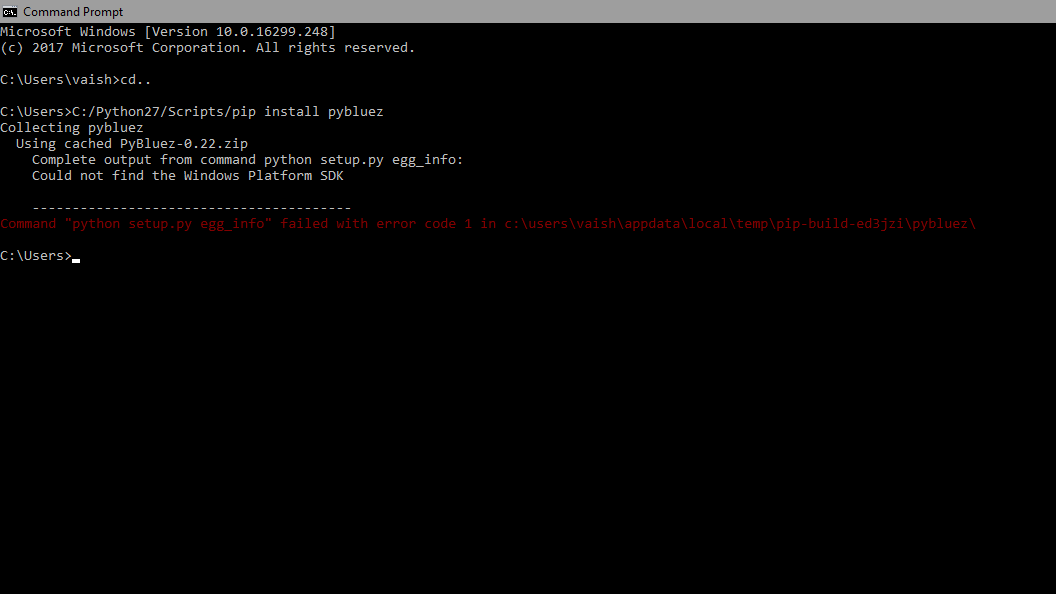
I'm trying to use bluetooth with python, and I came across a module - pybluez. Right then, I tried installing it by running pip install pybluez. The package was located and downloaded, but it raised an error when running python setup.py egg_info.
I then tried to download pyBluez from this link https://pypi.python.org/pypi/PyBluez But, it said that the Python version installed on my PC is not 2.7 ( I have 2.7.10; do I need 2.7.0 for this?) Also, this download link is for a 32-bit system, and that might be the reason it does not run on mine.
So I ask: 1. How do I fix this error?
Error in the output when I try to install pybluez using pip:
2.Does download using https://pypi.python.org/pypi/PyBluez need python 2.7.0, and a 32-bit system? If so, can someone suggest a better way for a 64-bit system? 3.Any other bluetooth module that could work as a substitute?
-
 GeertVc about 4 yearsAfter days of suffering, finally found the solution that solved the issue. Many thanks!!!
 -
 Nazar over 3 years@GeertVc Why didn't you provide the link to the solution?
 -
GeertVc over 3 years@Nazar: the solution is right on top, it's that simple... Look at Tomasz his answer.
-
 CodingMatters over 3 yearsThis deserves more upvotes, worked nicely for me in Python 3.7.3 on win 10.
 -
Tomasz over 3 yearsi'm glad to hear this :)
-
 Zoe stands with Ukraine over 3 yearsA link to a solution is welcome, but please ensure your answer is useful without it: add context around the link so your fellow users will have some idea what it is and why it’s there, then quote the most relevant part of the page you're linking to in case the target page is unavailable. Answers that are little more than a link may be deleted.
 -
PeterChen over 1 yeargreat answer, actively solved my problem.