Find and replace - Add carriage return OR Newline
Solution 1
Make sure Use: Regular expressions is selected in the Find and Replace dialog:
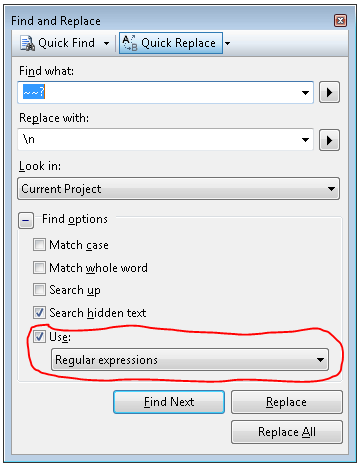
Note that for Visual Studio 2010, this doesn't work in the Visual Studio Productivity Power Tools' Quick Find extension (as of the July 2011 update); instead, you'll need to use the full Find and Replace dialog (use Ctrl+Shift+H, or Edit --> Find and Replace --> Replace in Files), and change the scope to Current Document.
Solution 2
You can also try \x0d\x0a in the "Replace with" box with "Use regular Expression" box checked to get carriage return + line feed using Visual Studio Find/Replace.
Using \n (line feed) is the same as \x0a
Solution 3
If you set Use regular expressions flag then the \n character would be translated. But keep in mind that you would have to modify your search term to be regexp friendly. In your case it should be escaped like this \~\~\?.
Solution 4
If you want to avoid the hassle of escaping the special characters in your search and replacement string when using regular expressions, do the following steps:
- Search for your original string, and replace it with "UniqueString42", with regular expressions off.
- Search for "UniqueString42" and replace it with "UniqueString42\nUniqueString1337", with regular expressions on
- Search for "UniqueString42" and replace it with the first line of your replacement (often your original string), with regular expressions off.
- Search for "UniqueString42" and replace it with the second line of your replacement, with regular expressions off.
Note that even if you want to manually pich matches for the first search and replace, you can safely use "replace all" for the three last steps.
Example
For example, if you want to replace this:
public IFoo SomeField { get { return this.SomeField; } }
with that:
public IFoo Foo { get { return this.MyFoo; } }
public IBar Bar { get { return this.MyBar; } }
You would do the following substitutions:
-
public IFoo SomeField { get { return this.SomeField; } }→XOXOXOXO(regex off). -
XOXOXOXO→XOXOXOXO\nHUHUHUHU(regex on). -
XOXOXOXO→public IFoo Foo { get { return this.MyFoo; } }(regex off). -
HUHUHUHU→public IFoo Bar { get { return this.MyBar; } }(regex off).
Solution 5
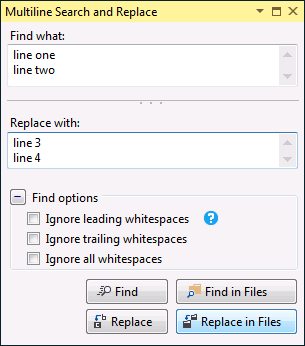
You can use Multiline Search and Replace in Visual Studio macro which provides nice GUI for the task.
Related videos on Youtube
 00 : 45
 01 : 39
 03 : 43
 01 : 24

Comments
-
Mantisimo almost 2 years
In the case of following string to be parsed.
ford mustang,10,blue~~?bugatti veyron,13,blackI want to replace the
~~?with acarriage returnReplacing with
\njust adds the string"\n"How can this be done?
-
 Cel almost 11 yearsusing the "Play" button to the right of the Find text is handy too
 -
Cel almost 11 yearsand if you're trying to match special characters such as parentheses dont forget to use e.g.
\)when regular expressions are on... -
 Suzanne Soy almost 9 years@Alex If you have a practical solution to this problem which avoids having to manually escape your search & replace text when transforming it to regular expressions, and spend the next 10 minutes fixing the monster created that way, I'd be very glad to hear it, since my answer is just an ugly hack. But as you can see, all other answers that work on a vanilla Visual Studio without extra plug-ins require the use of regular expressions, and thus escaping simple text.
 -
 Alex almost 9 yearsI didn't mean that in a bad way. My apologies i forgot to put a smiley :D As for a solution, no i dont have one that involves VS. But I found that any decent external editor that support regex (notepad++ etc) work quite well.
 -
Miros almost 9 yearsUltraEdit is the king of search replace - here you search for newlines, linebreaks or whatever simply by marking those lines and starting the search. - As for replace you simpy enter ^n for \n, ^r for \r and ^t for \t - if only VS2010 would do the same :-)
-
 ErikE over 7 years'~' doesn't need to be escaped in Regex. It's a literal character. This is incorrect.
 -
ErikE over 7 yearsThe
?character needs to be escaped in Regex because it signifies that the previous element is optional. Thus, the correct "Find what" text is~~\?, with the question mark escaped by a backslash. The answer you gave works on the sample text because it will greedily find the second tilde and consume it, however if a single tilde also exists in the text anywhere, it will improperly be replaced with a newline as well. -
ErikE over 7 yearsYou can always visit regex101.com to see if your search string is going to match literal characters or be interpreted as Regex control characters.
-
Neb almost 7 yearsIf Productivity Power Tools is installed, you can still do ctrl+shit+h and then ctrl+h to open the native Visual Studio Find / Replace window.
-
 Mark Schultheiss over 5 yearsDoes not seem to work with Visual Studio 2017 without some extra steps, i.e. have to click the "find in files" then modify that dialogs scope, the shortcut default is f# interactive now.
 -
 Jacob Lockard over 2 yearsIt should be noted that if "Use Regular Expressions" is selected, one can use "\n" to find (and replace) newlines as well.
 -
 Farid Z about 2 yearsFind: \r\n Replace: mytext\r\n Use regular expressions.
 -
 Jonathan E. Landrum over 1 yearTHANK YOU, I was going crazy trying to figure this out (Unix background).